Accounts & setup · 27
WebApp and remote control
Use app.tavaku.com to view and control a connected Tavaku client.
Annotated screenshot walkthrough. Every step is also written below. Download captions
Reference: client 3.2.3 with local changes · Sep 16, 2026. Some options may not be in the public download yet. Captured interface is in English.
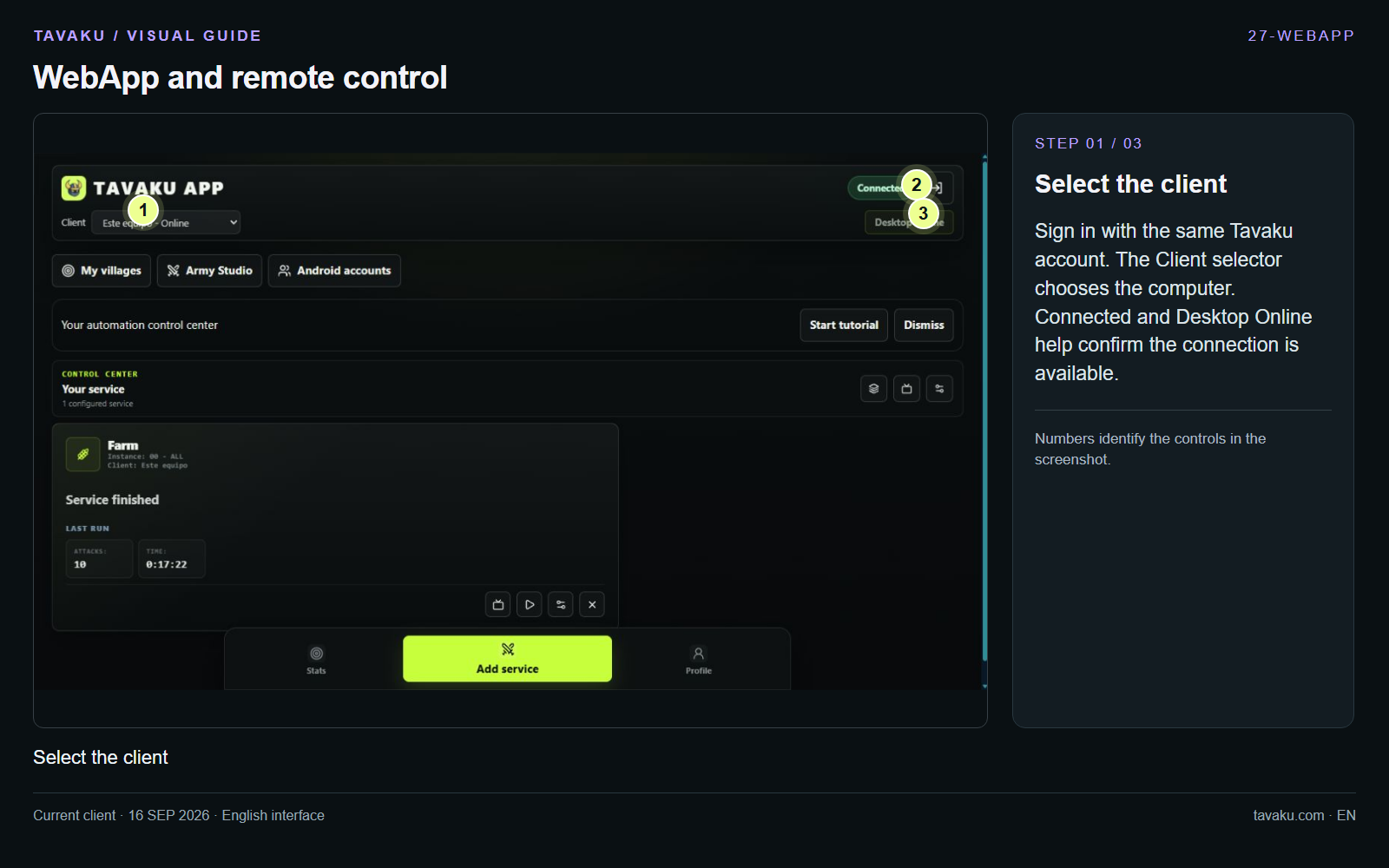
Sign in with the same Tavaku account. The Client selector chooses the computer. Connected and Desktop Online help confirm the connection is available.
 Enlarge image ↗
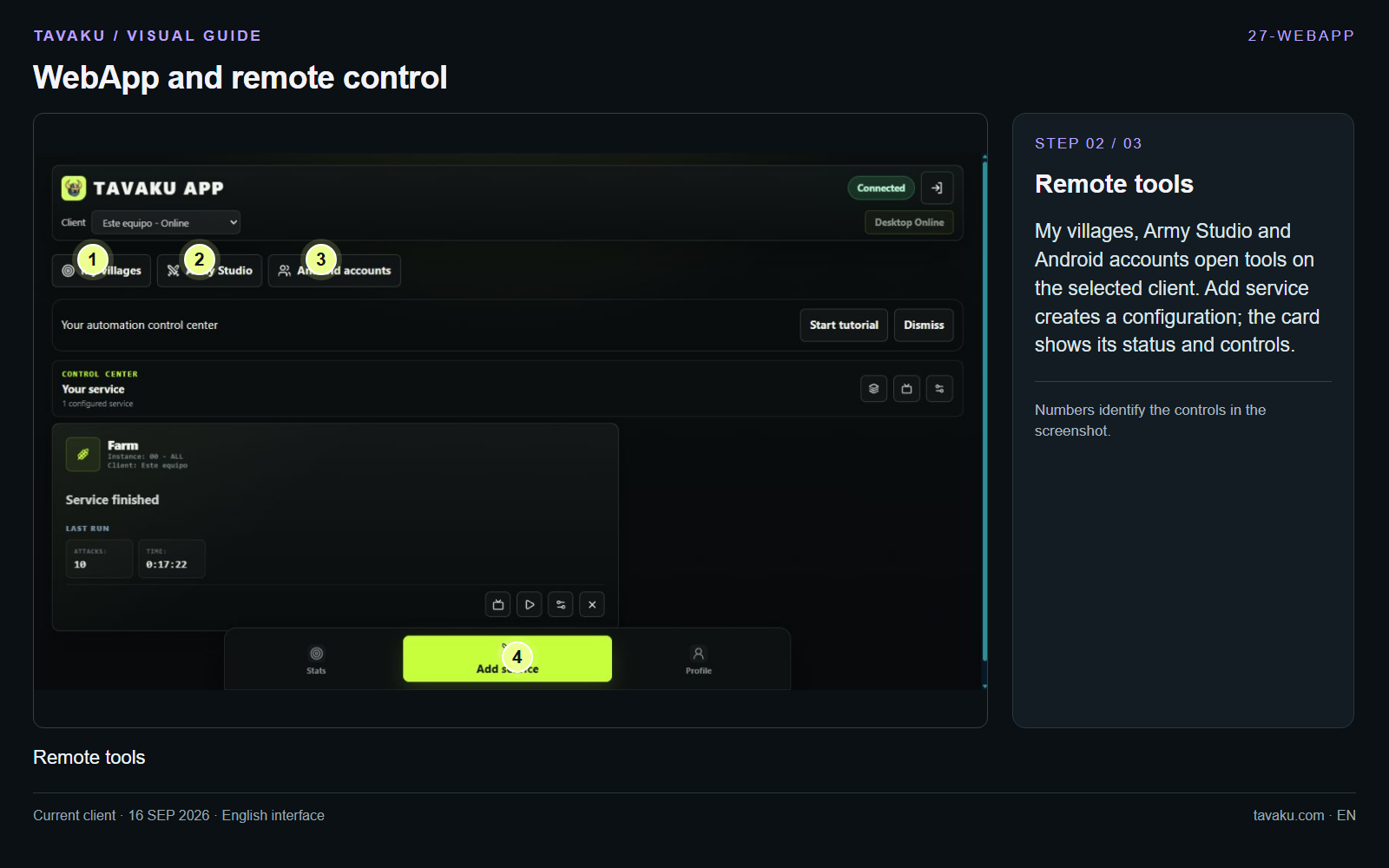
My villages, Army Studio and Android accounts open tools on the selected client. Add service creates a configuration; the card shows its status and controls.
 Enlarge image ↗
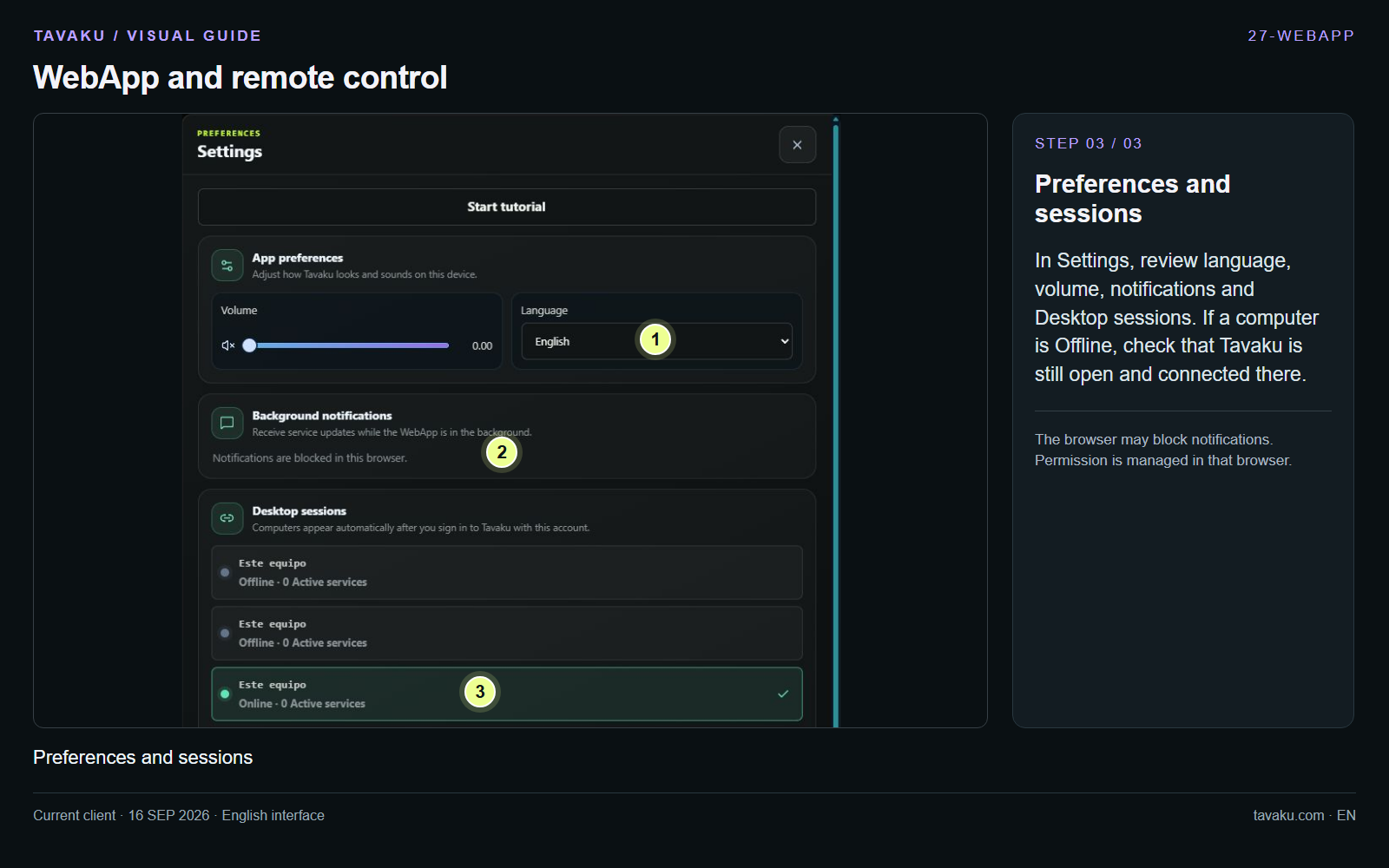
In Settings, review language, volume, notifications and Desktop sessions. If a computer is Offline, check that Tavaku is still open and connected there.
The browser may block notifications. Permission is managed in that browser.
 Enlarge image ↗
About this guide
Configuration walkthrough of the current client, including local changes. No service was started during capture.