Accounts & setup · 35
Configure multi-instance step by step
Example: prepare two emulators to work with two different accounts at the same time.
Annotated screenshot walkthrough. Every step is also written below. Download captions
Reference: client 3.2.3 with local changes · Sep 16, 2026. Some options may not be in the public download yet. Captured interface is in English.
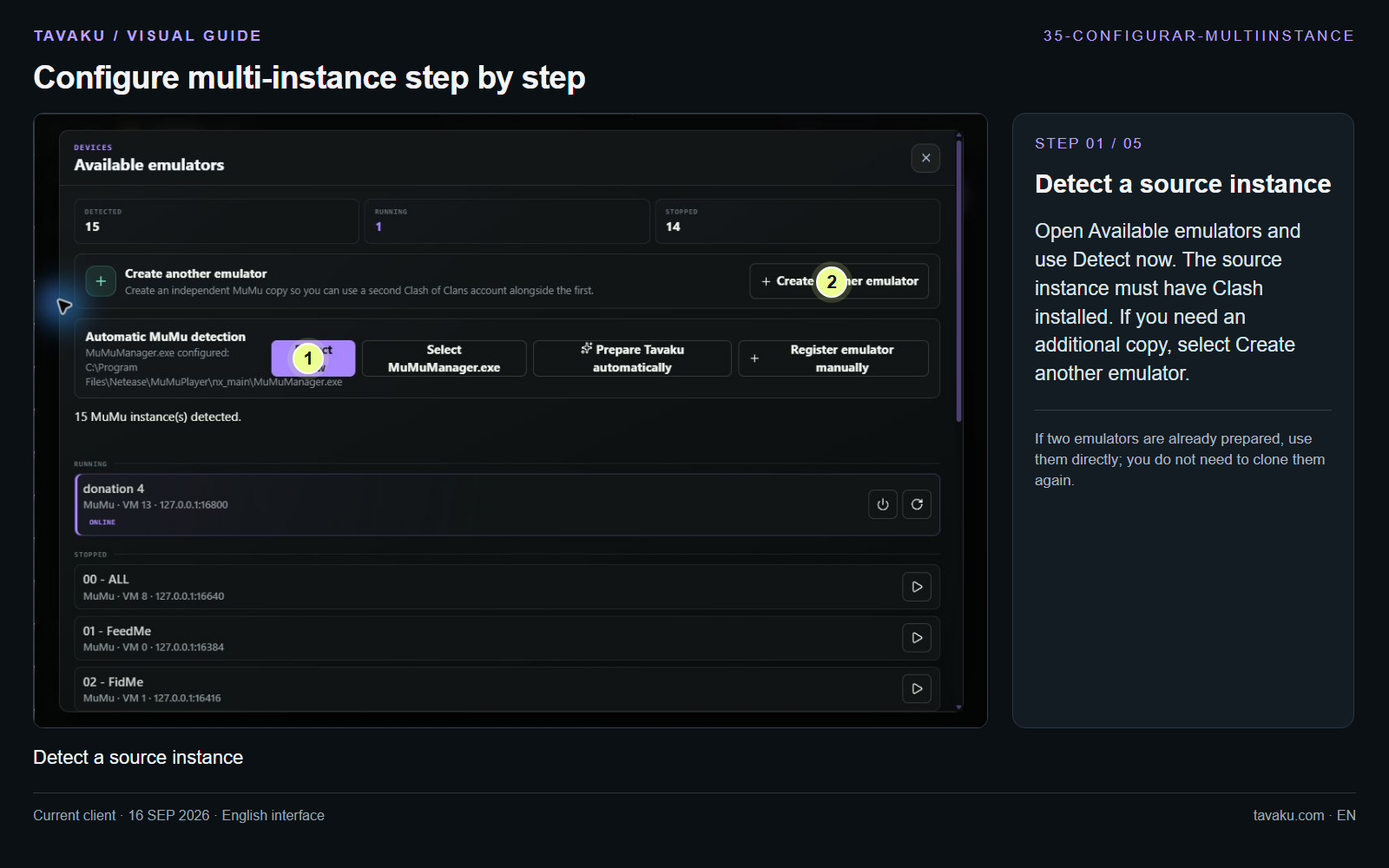
Open Available emulators and use Detect now. The source instance must have Clash installed. If you need an additional copy, select Create another emulator.
If two emulators are already prepared, use them directly; you do not need to clone them again.
 Enlarge image ↗
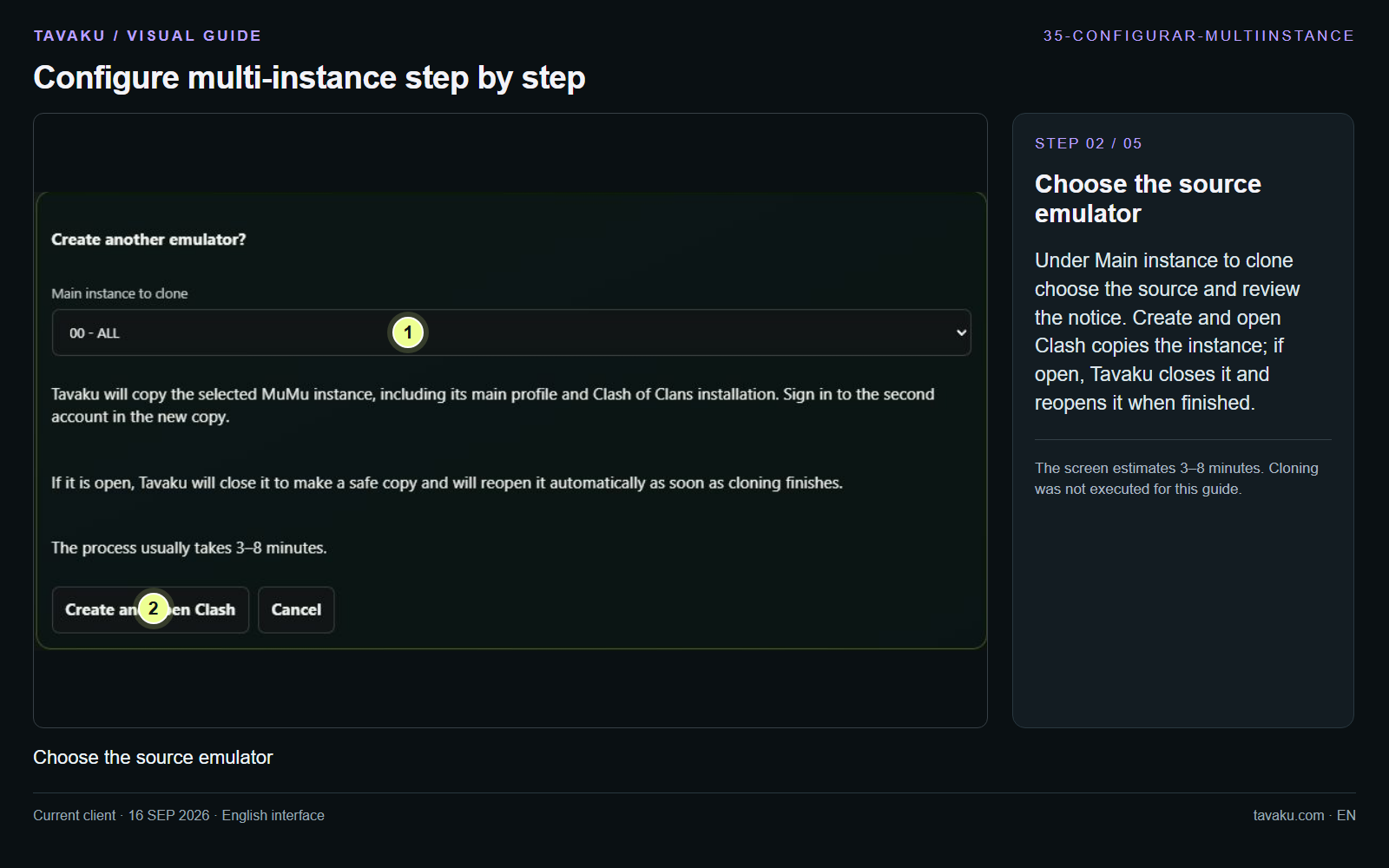
Under Main instance to clone choose the source and review the notice. Create and open Clash copies the instance; if open, Tavaku closes it and reopens it when finished.
The screen estimates 3–8 minutes. Cloning was not executed for this guide.
 Enlarge image ↗
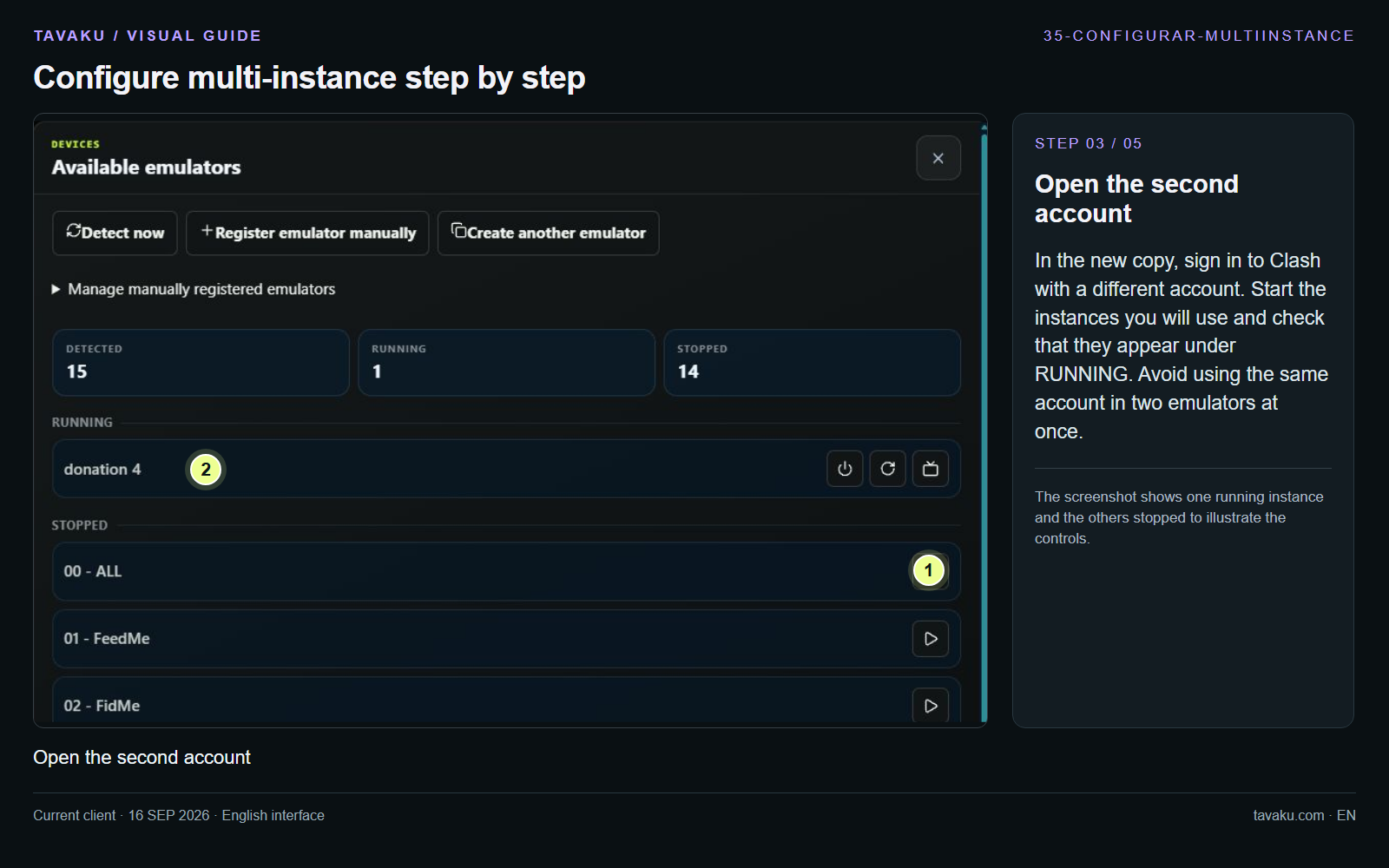
In the new copy, sign in to Clash with a different account. Start the instances you will use and check that they appear under RUNNING. Avoid using the same account in two emulators at once.
The screenshot shows one running instance and the others stopped to illustrate the controls.
 Enlarge image ↗
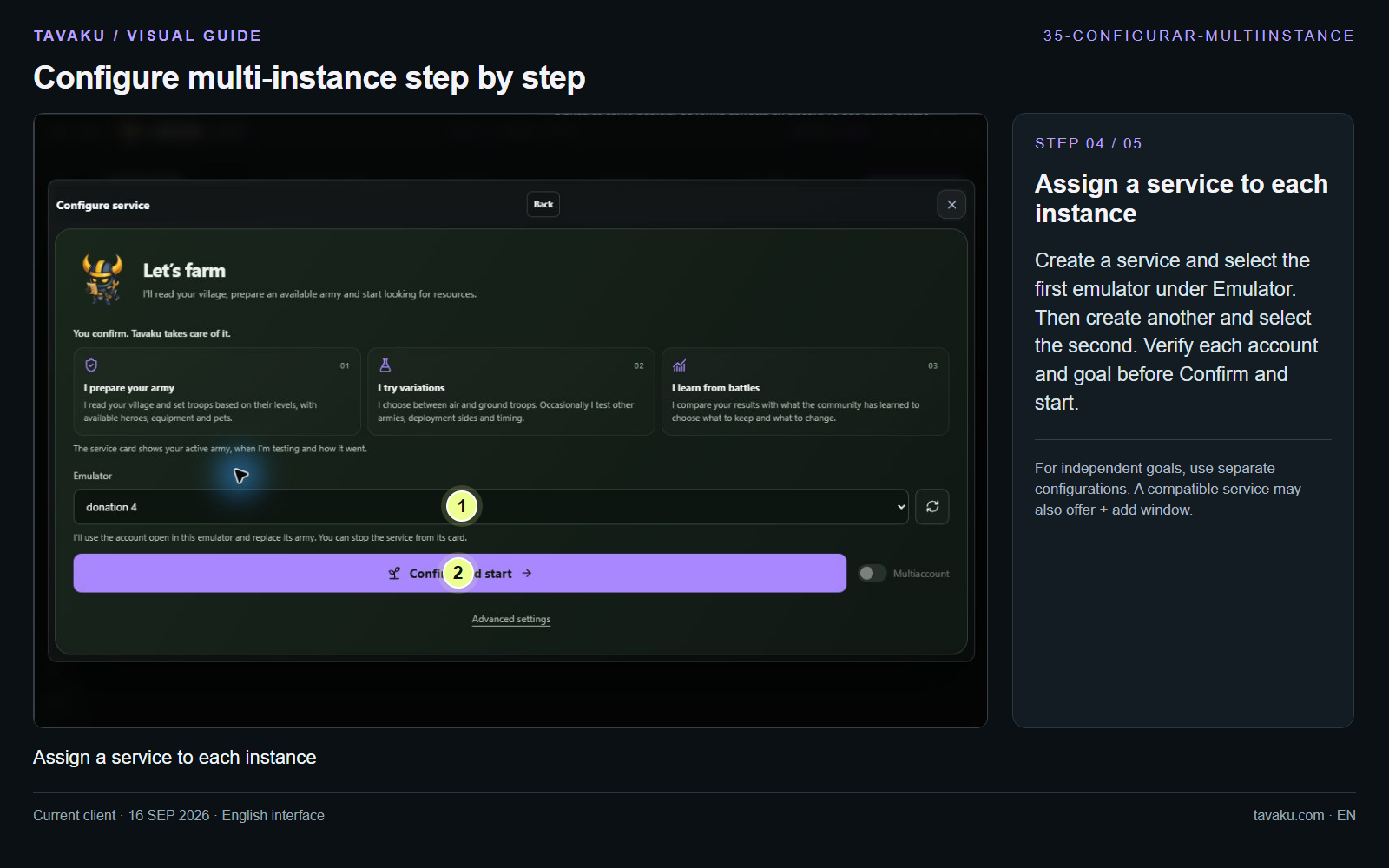
Create a service and select the first emulator under Emulator. Then create another and select the second. Verify each account and goal before Confirm and start.
For independent goals, use separate configurations. A compatible service may also offer + add window.
 Enlarge image ↗
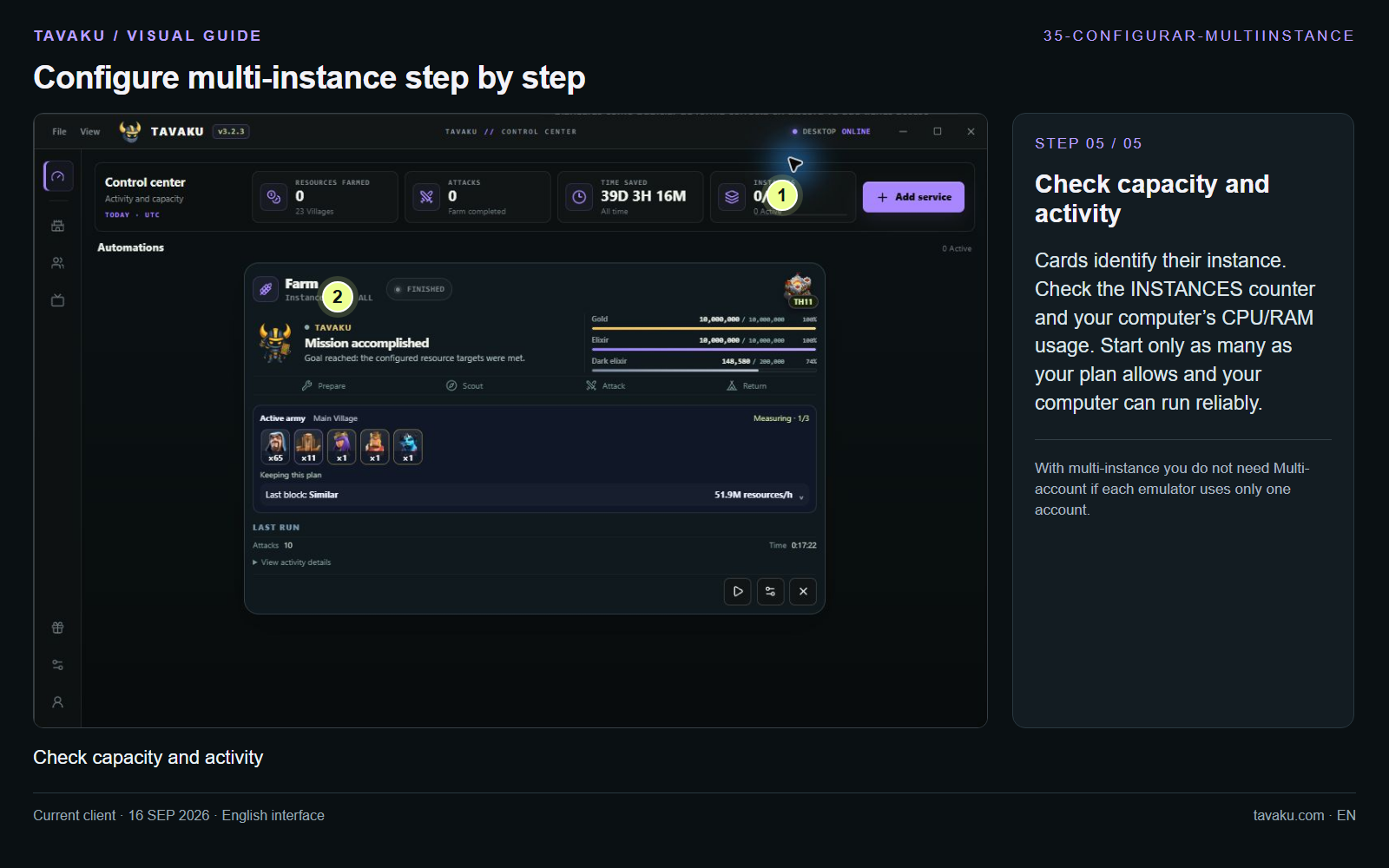
Cards identify their instance. Check the INSTANCES counter and your computer’s CPU/RAM usage. Start only as many as your plan allows and your computer can run reliably.
With multi-instance you do not need Multi-account if each emulator uses only one account.
 Enlarge image ↗
About this guide
Configuration walkthrough of the current client, including local changes. No service was started during capture.